
Overview #
This article covers how to perform a factory reset on the XPID210 handheld via Android Recovery mode.
⚠️ Warning: This erases all data on the device, including the XPressEntry app and any local enrollment/user data. The device will need to be re-enrolled and reconfigured after the reset. Back up anything needed before proceeding.
Button reference:
- Volume button — cycles/highlights the menu option
- Power button — confirms and executes the highlighted option
Steps #
- Power off the device completely before starting. If it won’t power off normally, remove the battery for 5 seconds, then reinsert it.
- Hold the Volume button and press Power to turn the device on. The “Select Boot Mode” screen will appear.
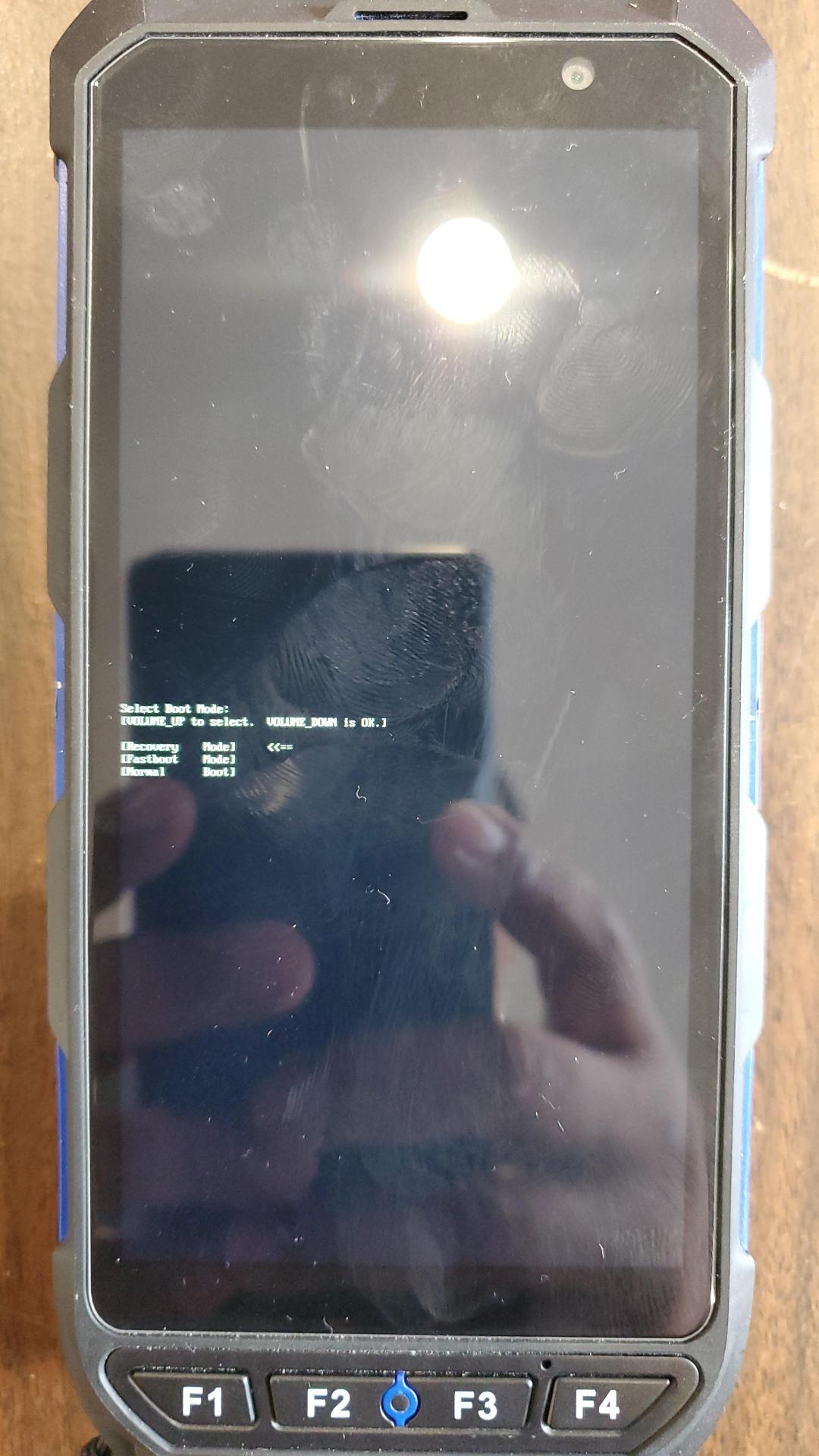
Select Boot Mode screen — Recovery Mode highlighted - On the Select Boot Mode screen, press Volume to highlight [Recovery Mode], then press Power to enter it.
- An Android “No command” icon will appear.
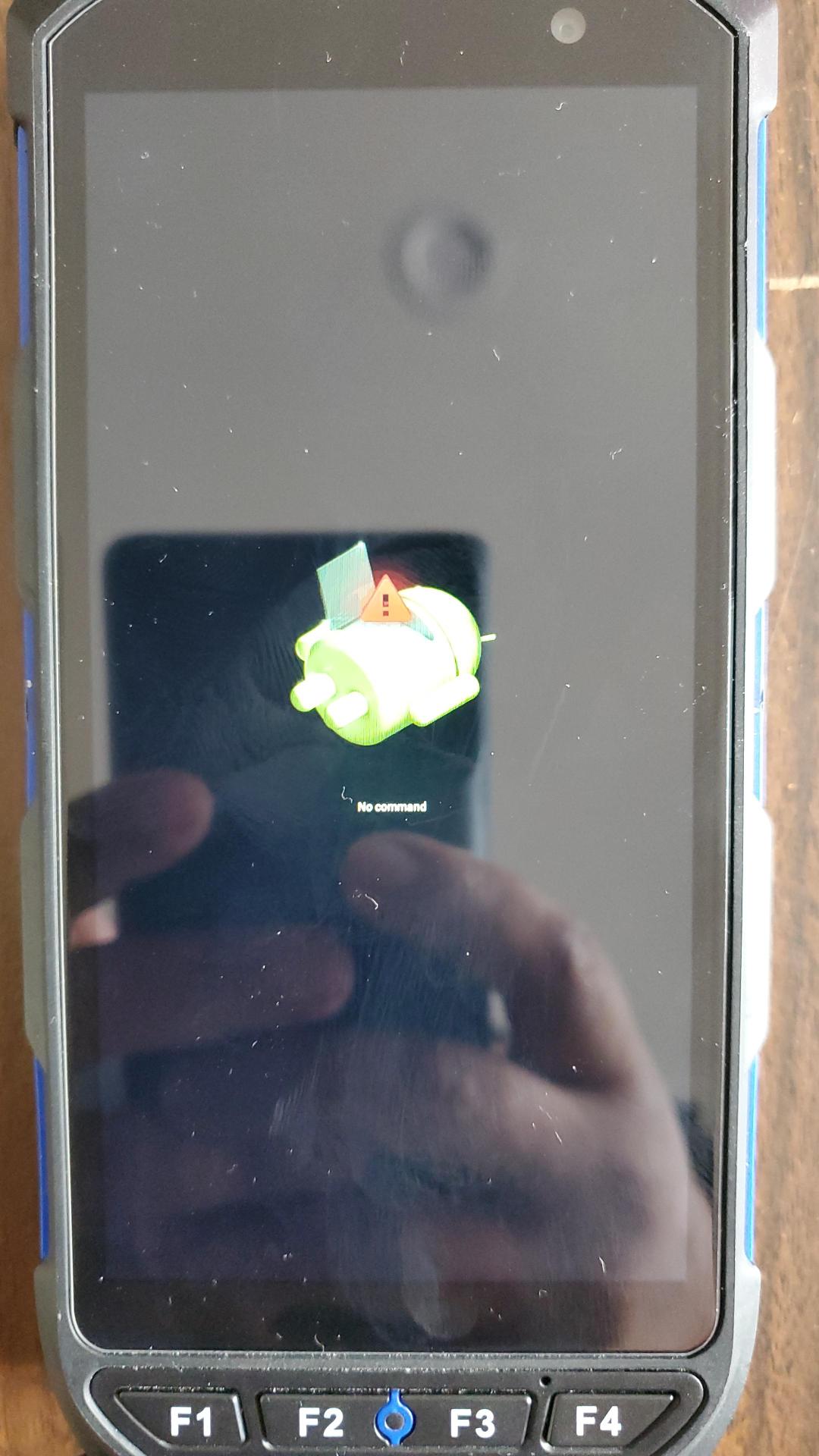
“No command” screen — hold Volume for 2 seconds to bring up Android Recovery - Press and hold Volume for 2 seconds, then release. This brings up the Android Recovery menu.
- The Android Recovery menu appears, listing options including Reboot system now, Wipe data/factory reset, Power off, etc.
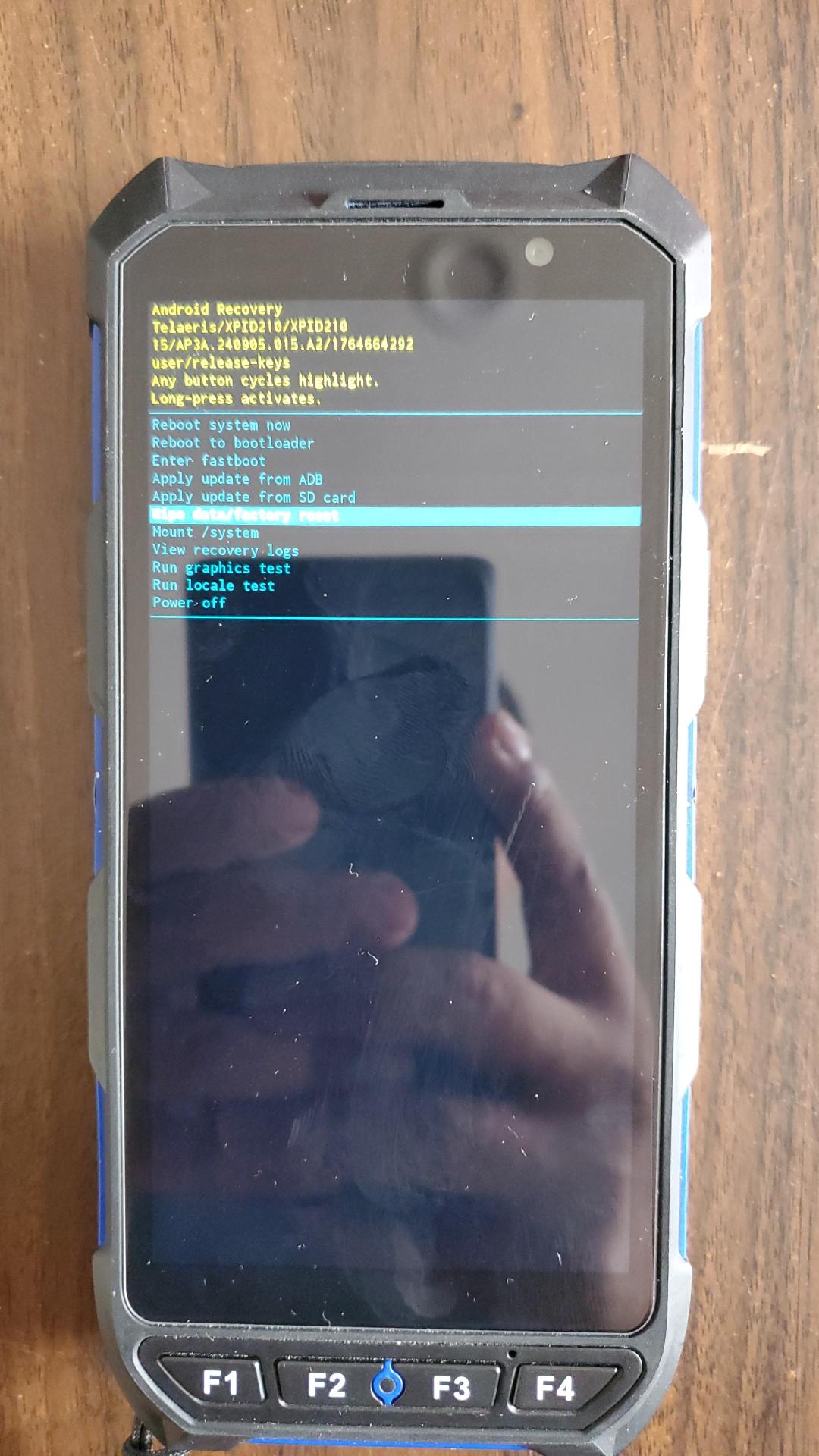
Android Recovery menu — “Wipe data/factory reset” highlighted - Press Volume to move the highlight down to “Wipe data/factory reset.”
- Press Power to execute the wipe. This brings up a confirmation screen.
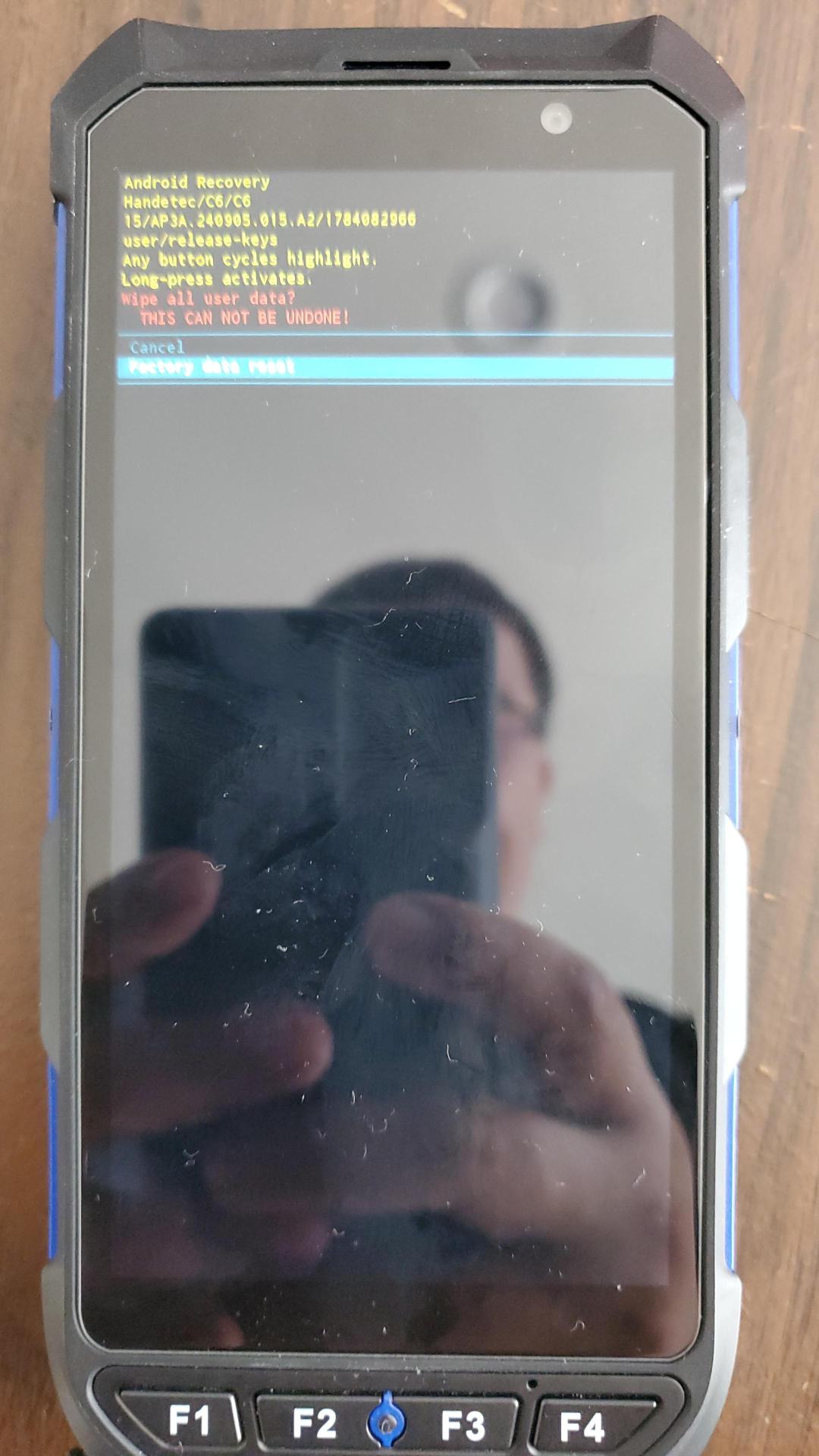
Confirmation screen — “Factory data reset” highlighted - Confirm the factory data reset by pressing Power (with “Factory data reset” highlighted) to enter. This cannot be undone.
- Once the wipe finishes (log shows “Data wipe complete.”), you’re returned to the Android Recovery menu with “Reboot system now” already highlighted.
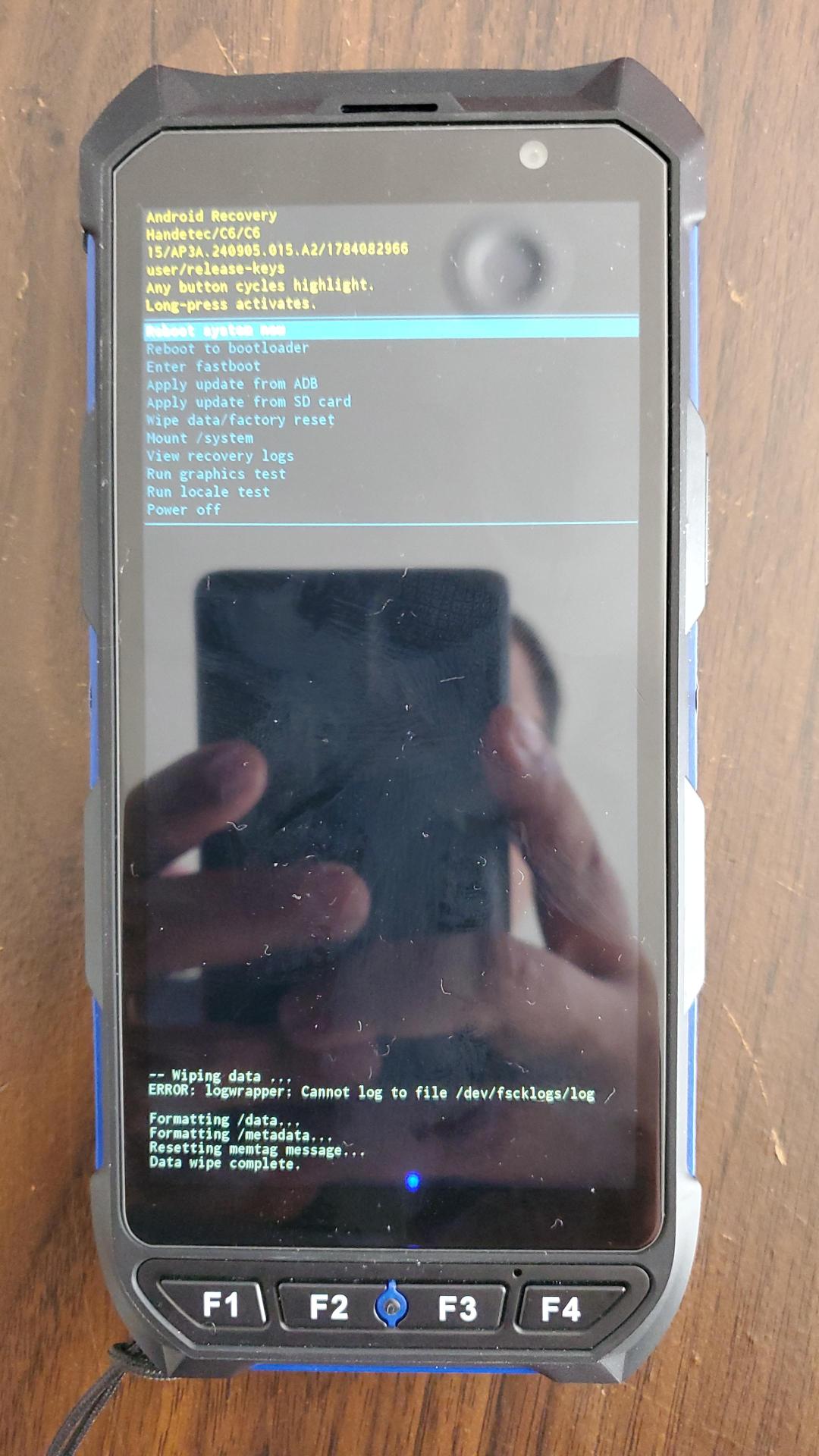
“Data wipe complete” — back at the Recovery menu, “Reboot system now” highlighted - Press Volume to confirm “Reboot system now” is selected, then press Power to enter. The device will boot up, which may take a few minutes.
- Once rebooted, complete the Android setup process (language, WiFi, etc.), then download and install XPressEntry (Flutter) and KeyLink to restore handheld functionality.


