
Secure and manage XPID devices across your organization
This episode of XPressEntry Fast Features covers Secure Device Management (SDM) for XPressEntry. SDM allows users to secure and manage their XPressEntry handheld readers across an organization from a single program.
In the XPressEntry Fast Features video series, our engineering team showcases the latest updates and improvements built into XPressEntry. These videos provide a hands-on look into features used for:
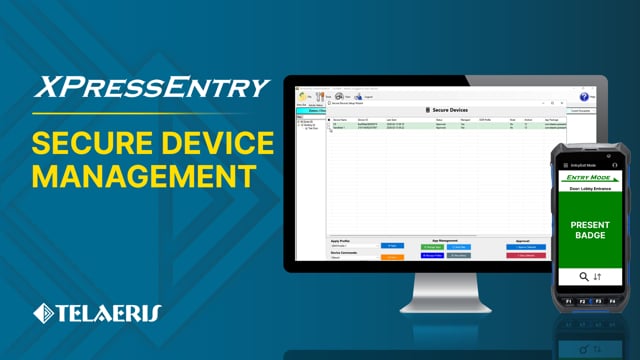
[0:11] Linzy: Hey Layth, I hear we have a new XPressEntry feature that lets us remotely control handheld devices. Can you tell me more about it?
[0:17] Layth: Yeah, of course. So, this feature is actually called Secure Device Management, or SDM for short. And like you said, it gives users a lot more control over their handheld devices.
[0:26] Layth: So it allows us to do things like put the handheld into kiosk mode, limit hardware functionality, and remotely update the XPressEntry application with one click.
[0:40] Linzy: Sounds neat. Can you give us a quick demo of the functionalities?
[0:43] Layth: Sure. So to do this, we want to go to Tools and the XPressEntry server, click Secure Device Setup Wizard. And normally there’s a whole secure process that needs to happen in order to enroll the devices in SDM, but for the sake of the demo, I’ve already done that. And I’m just going to go ahead and show the commands that we can send.
[1:05] Layth: So one of the first ones is actually kiosk mode. This is going to allow us to lock the device into XPressEntry so that we can’t do anything else on it but this app. So typically you can also enter a password so that kiosk mode can be exited from the application itself, or you could not have one set. So we’re not going to set one for now, and I’m just going to send the command. And as you can see right away, the application went into kiosk mode and I can’t do anything on the device but stay on XPressEntry.
[1:40] Linzy: Cool. So kiosk mode keeps users from downloading other apps or messing with the device’s settings.
[1:46] Layth: Exactly. And we can go beyond the XPressEntry app and disable access to the device’s settings, other buttons, physical hardware, Wi-Fi, and such. This also is going to ensure that the handheld is used strictly for its intended purposes and just to make it more secure overall.
[2:04] Linzy: And all of this can be done completely remotely.
[2:06] Layth: Yeah, exactly. So if you have multiple devices being used by guards out in the field or scattered across a facility, with SDM an administrator can configure these devices and control them all from the server without ever having to touch the device themselves. And of course, this works so long as there is an active network connection and the devices are running on the same network.
[2:29] Linzy: Is there a way to control multiple devices at once?
[2:32] Layth: Yeah, of course. So this is where device profiles, or SDM profiles, come into play. A profile essentially allows us to define a set of hard limits on the device. So as you can see, if I go to Manage Profiles here, I have one created, and we can restrict all these settings — USB, SD card, Bluetooth, camera, GPS. We can also limit the connectivity, so we can choose which network we want to connect to or restrict access to, and whether we want to lock the network down. And it’s very simple to apply it to multiple devices — you simply select which devices you want and you click apply.
[3:17] Layth: And now all the devices have received the update and they are going to respond according to the profile.
[3:25] Linzy: Cool, this seems like a huge time-saver for larger deployments. So aside from kiosk mode and the other settings you mentioned, what else can SDM do?
[3:33] Layth: Yeah, of course. SDM can also be used to update or install the XPressEntry application. So all you have to do is select the devices you want to update or install an application, click Manage App, you include the APK, and then you just click Install, and this will install whatever application you have selected.
[3:57] Layth: Another thing you can also do is see if the device has received the commands that you’ve sent it. So to do this, we just click on View History over here, and we can see the Install Apps command has been completed and it was a success. We can see that the Enter Kiosk Mode command that we sent was a success and it was completed. If commands failed for whatever reason, this would also show you why, and you can respond accordingly. And some other commands that are also useful — you could reset the data on the handheld, or factory reset it, in case it gets lost and you want to make sure the data doesn’t get into the wrong hands, you can do these measures.
[4:42] Linzy: Wow, that’s great. So the History view lets us see that everything’s working, and the commands give us a lot more control over the devices. So if you had to sum it up, what’s the big benefit of SDM?
[4:57] Layth: Yeah, XPressEntry’s SDM gives organizations more convenient and centralized control over their Telaeris handheld devices. It makes setting up the devices, troubleshooting, and managing applications a lot easier, especially for large deployments.
[5:08] Linzy: Very cool. Thanks so much for the demo.