
Overview
When a handheld scan returns User Not Found or Unknown User, the badge was read successfully but XPressEntry could not match it to a user record. This guide walks through finding where the record is missing and fixing it.
Step-by-Step
Step 1: Check what the handheld displayed
If the scan shows a value beginning with 0x followed by hex characters, the card’s Wiegand format is not in the system. This is possibly a card format problem and not a sync problem.
Follow the KB article How to Troubleshoot Card Scans Showing Incorrect Numbers.
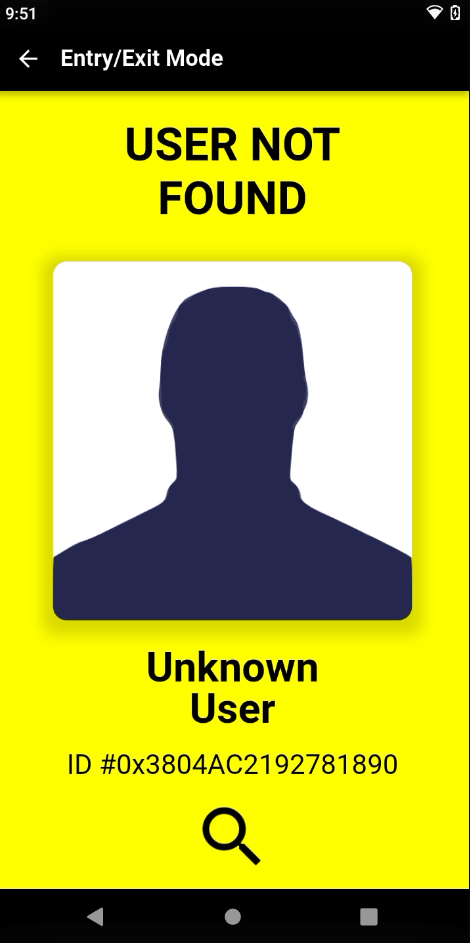
If the scan shows the correct badge number with User Not Found, the user record is missing or out of date somewhere in the chain: [Your Access Control System] → XPressEntry Server → handheld. If this is the case, continue to Step 2.
Step 2: Search for the user on the XPressEntry Server
On the server, go to Add/Edit Info → Users and search for the person.
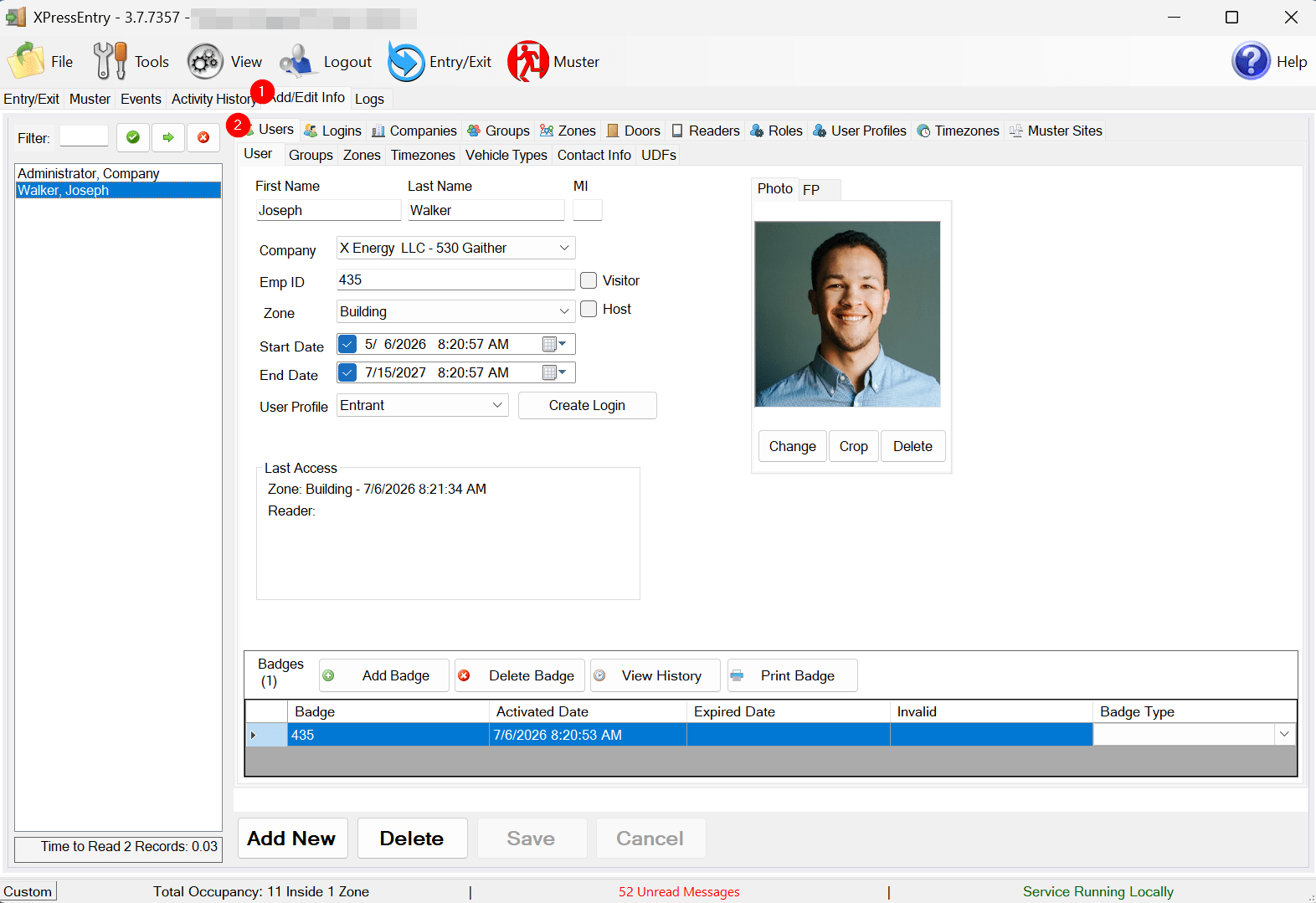
User is missing: the record has not synced from your access control system. Go to Step 3.
User exists: the server has the record, so the problem is the badge or the handheld. Go to Step 4.
Step 3: User missing from the server (sync gap)
The most common cause is a new or recently re-badged cardholder. Depending on your integration, new cardholders may only arrive during a Full Sync. Once a cardholder has synced the first time, live software events keep them updated.
Run a Full Sync from the Data Manager tab and confirm the user appears afterward.
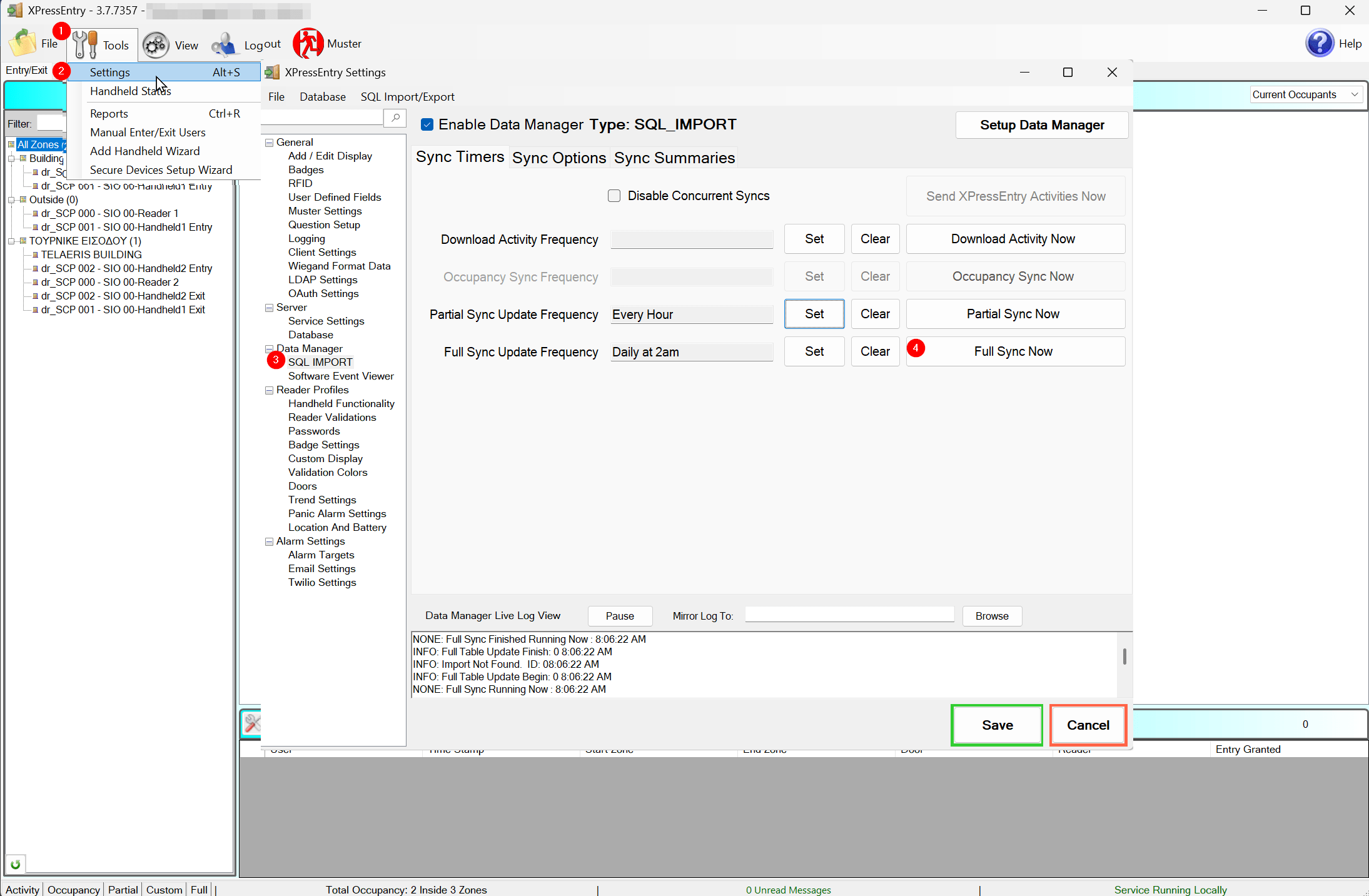
If the user still does not appear, check the Data Manager Sync Summaries and log for sync errors and confirm the sync service is running.
Step 4: User exists on the server but scan still fails
Open the user record and confirm the badge is assigned, active, and not expired. If the badge was recently replaced, confirm the new badge number is present.
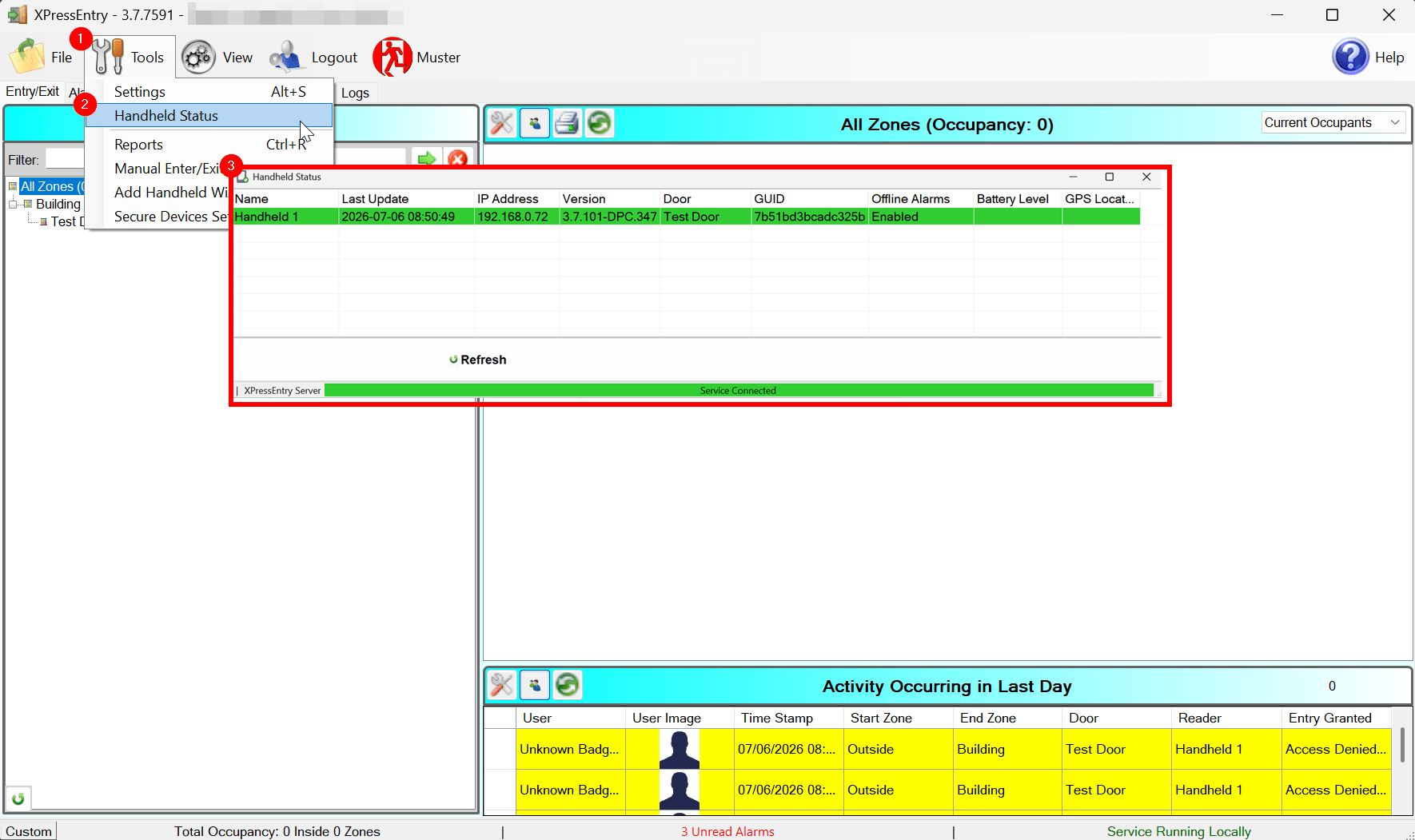
Go to Tools → Handheld Status and check the handheld’s last sync time and connection color (green = connected).
If the handheld data is stale, reconnect it and let a full download complete.
Confirm the handheld app version matches what the server expects (visible in Handheld Status or in the handheld app’s Reader/Settings tab).
Step 5: Customer Support
If the user exists, the badge is valid, and the handheld is current but scans still fail, collect the following and contact [email protected]:
A diagnostic ZIP from the server (Help → About → Create Diagnostic Report)
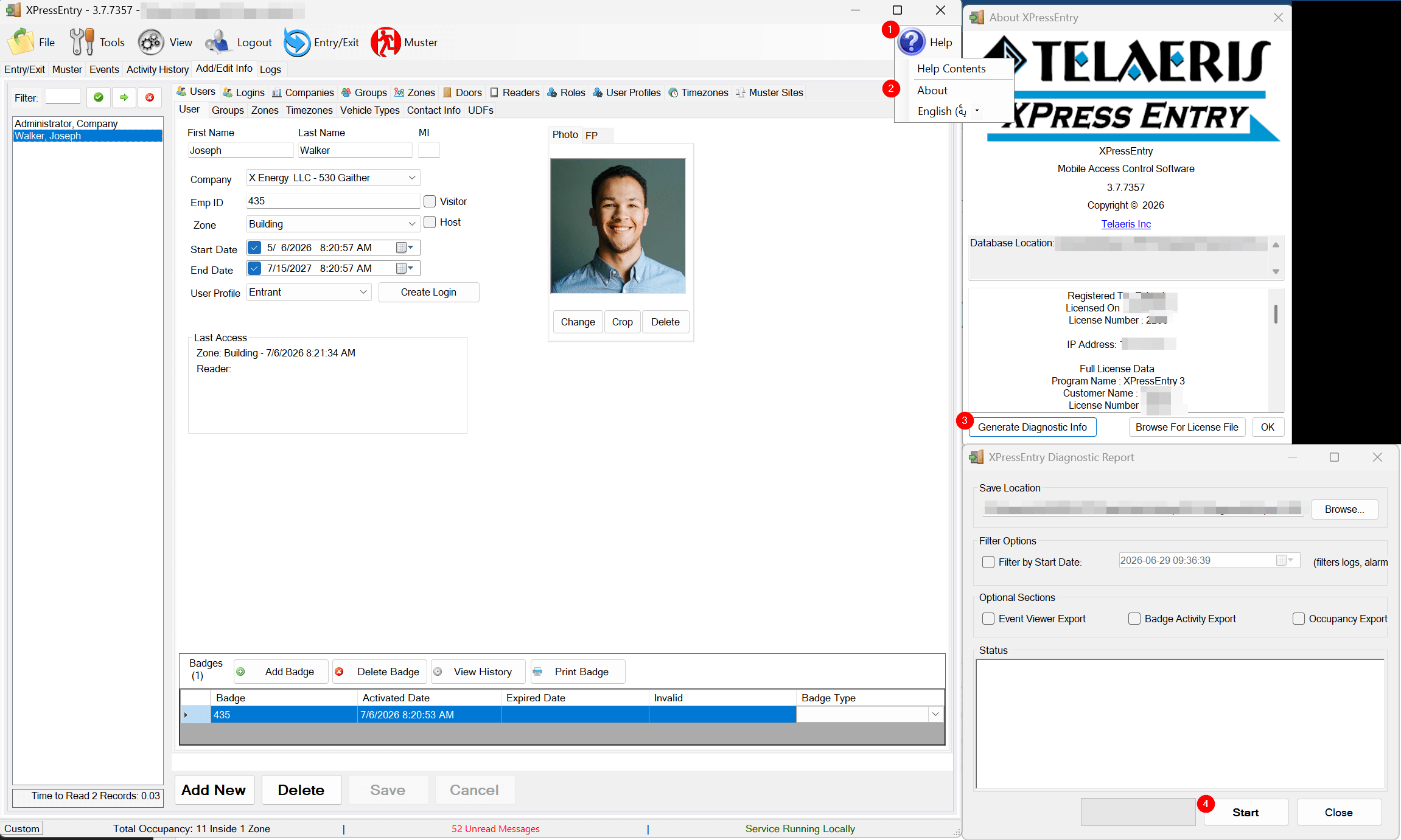
The handheld software version
The badge number and approximate time of the failed scan


